dtSearch Web Quick Start
Article: dts0162
Applies to: dtSearch Web
See also: Welcome/Introduction: dtSearch Web with Spider
dtSearch Web is a search engine that you can install on a Web server to publish documents on your web site. It can perform fast indexed searches using the same search features that dtSearch Desktop supports -- fuzzy searching, phonic searching, natural language searching, boolean logic, proximity, etc. Indexed documents can be in any format that dtSearch supports, such as HTML, PDF, XML, Word, Excel, PowerPoint, and ZIP archives.
After a search, dtSearch Web will convert documents as needed to HTML for display, with hits highlighted. If a retrieved document is already in HTML, dtSearch Web will display it with hits highlighted while preserving the HTML attributes (so links and images will work in your browser).
This Quick Start will describe how to get a basic search form running on your web site with minimal effort. You can create any number of search forms, each with its own set of option settings and index selections.
1. Install the dtSearch and dtSearch Web program files on your web server.
dtSearch Web requires Microsoft Internet Information Server (IIS), which is included with Windows. For supported Windows versions, see dtSearch Web system requirements and performance.
For instructions to install the required IIS components, please see:
How to install dtSearch Web on Windows Server
How to install dtSearch Web on Windows 11, Windows 10, Windows 8, Windows 7
2. Make the document folders accessible on your web server
To provide access to documents on your web server, designate each folder that contains documents to be published as a virtual directory in IIS. IIS will automatically include subfolders of a virtual directory that you create, so you only need to define the top-level document folder as a virtual directory. To allow anonymous access for document searches, the document folders and index folders must have read permission enabled for the IUSR account.
3. Build an index of your documents
dtSearch Web uses the same indexes as dtSearch, so if you already have a dtSearch index of the documents that you want to make searchable, you can use this index with dtSearch Web. If not, follow the dtSearch Quick Start to set up an index. If you are indexing a dynamically-generated web site (such as a web site generated by a content manager) see "How to use dtSearch web with dynamically-generated content" for information on using the dtSearch Spider to set up your index.
The index folder must also have read permissions enabled for the IUSR account to allow anonymous access for searching.
For faster display of search results, you can use the "Create Index (Advanced)" dialog box to enable the "Cache document text in index" option when you create the index. If you do this, a user who is able to search an index will also be able to open any documents that are cached in the index. Therefore, if documents are subject to security restrictions, the same security restrictions should apply to the index folder, if the documents are being stored in the index.
4. Run dtSearch Web Setup
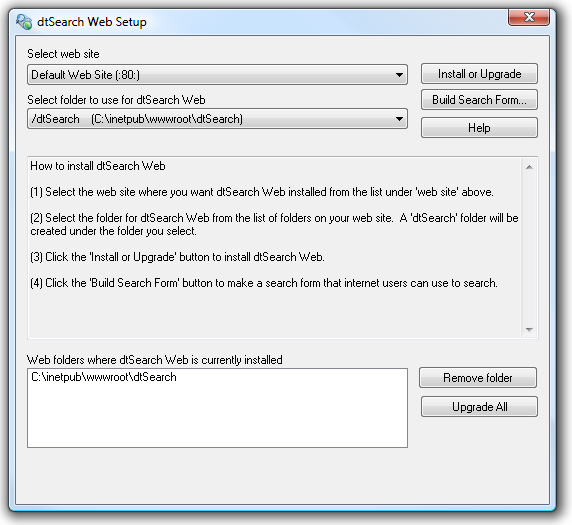
In dtSearch, click "dtSearch Web Setup..." in the File menu. dtSearch Web Setup will display a drop-down list of the web sites on your server, and below it a list of the virtual directories defined for each site.
5. Select the web site to use with dtSearch Web
If you have more than one web site on this server, you can install dtSearch Web on each of them, or just one. (To install dtSearch Web on additional web sites, repeat the procedure described in this Quick Start for each site.)
6. Select the folder where dtSearch Web should be installed
dtSearch Web Setup will create a "dtSearch" folder under the folder you select where the dtSearch Web files will be installed. Click the Install or Upgrade button to install the dtSearch Web files in the folder you selected.
If the folder you selected does not already have 'Execute' permission enabled, dtSearch Web Setup will ask if it can enable 'Execute' permission in the folder so dtSearch Web can run from that folder.
When dtSearch Web Setup asks if it can register dtSearch Web with Internet Information Services, answer Yes to have dtSearch Web Setup take care of this automatically. If you prefer to register dtSearch Web yourself, please see "Registering dtSearch Web" in this article: How to install dtSearch Web
7. Build a Search Form for your site
Click the Build Search Form... button to build a search form to use with your site. You can make as many search forms as you want for each site, and after dtSearch Web Setup has generated a search form, you can use an HTML editor to edit it to fit into your web site. The search form should go in one of the folders on your site where you store other HTML files.
In the Build Search Form dialog box, click the Indexes tab to select the indexes that you want to put on the search form. Check the box next to each index to include it on your search form.
8. Click OK to build the search form.
After the search form is built, dtSearch Web will open it in your browser so you can try out a search. Once you have a basic search form working, you can run Form Builder again to customize the search form, the appearance of search results, and other options.
Making documents accessible
Every document to be made searchable in dtSearch Web must be in a virtual directory in IIS. After you add virtual directories to a site, run dtSearch Web Setup to update dtSearch Web with the new information. You do not need to reinstall dtSearch Web or run Form Builder again -- just start dtSearch Web Setup and exit it, and dtSearch Web will know about the new directories.
Customizing the search form and search results
Once you have a basic search form working, you can use your HTML editor to modify the search form and the appearance of search results. For more information, see the dtSearch Web User's Manual